Interface
Jutsu’s interface is organized into six primary panes and eight focus states. The active pane has a peach border, while inactive panes have a lavender border. Persistent choices (such as the selected command, subcommand, or active flags) are highlighted in sapphire or peach to keep your context visible as you move focus.
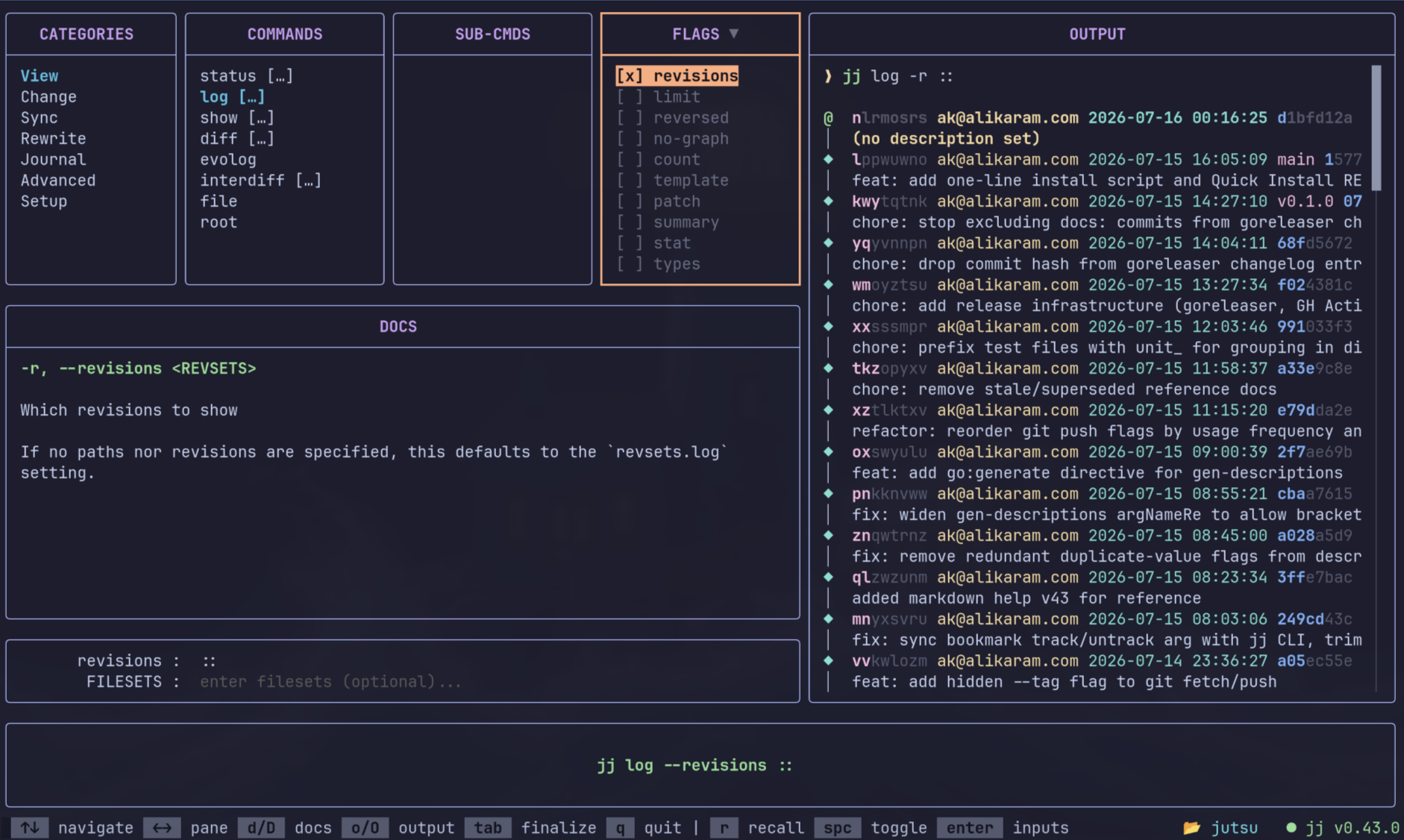
The 8 Focus States & Layout Panes
Section titled “The 8 Focus States & Layout Panes”While the terminal is physically divided into a few main panels, Jutsu’s navigation logic moves through 8 distinct focus states:
- Categories Pane — High-level groupings of Jujutsu operations.
- Commands Pane — Specific
jjcommands available under the selected category. - Sub-cmds Pane — Nested subcommands (e.g.,
git fetch,bookmark list) for the active command. - Flags Pane — Toggleable options and flags for the current command.
- Inputs Pane — A dynamic field row that opens at the bottom when arguments or values are required.
- Docs Pane — Shows detailed description and help text for whichever command, subcommand, or flag is currently highlighted.
- Output Pane — Shows a running-status indicator while a command executes, then the command’s stdout/stderr once it completes.
- Command Bar — A live-updated preview of the full
jjshell command being composed, ready for execution.
Persistent Selection Indicators
Section titled “Persistent Selection Indicators”As you move focus between panes, your current selections stay visible so you never lose track of your configuration:
- The active pane’s border is peach; inactive panes are lavender.
- A selected category, command, subcommand, or toggled flag remains highlighted in sapphire (selected but unfocused) even after focus moves elsewhere.
- The Command Bar always reflects the composed command in real time, so you can see exactly what will run.
Related Topics
Section titled “Related Topics”- Navigation — the keyboard controls that move focus between these panes.
- Commands — how categories, commands, and subcommands populate the first three panes.
- Output & Docs — details on the Docs and Output panes, scrolling, and enlargement.